
Have a Question?
-
Telcloud
- Changing Your Name on Voicemail
- Changing Your Voicemail Password/PIN
- Customize Your Ringtone - Yealink or Polycom
- Hot Desking Instructions
- How to add Music on Hold
- How to create real-time Call Centre dashboard/wall board
- How to Enable or Disable Do Not Disturb Mode (DND) - Yealink or Polycom
- How to schedule automatic Call Centre reporting
- How to Set the Auto Attendant Greeting
- How to use Call Centre Reporting
- Telcloud Star Codes
- TelCloud Tip - How to Change your Voicemail Pin Using Your Phone
- Telcloud Voicemail Menu Tree Guide
- TelCloud: Call Forwarding
- TelCloud: How to Change Your Directory Name
- TelCloud: How To Update Your Voicemail Greeting
- Show all articles ( 14 ) Collapse Articles
-
TelCloud Lite Articles
- Customize Your Ringtone - Yealink or Polycom
- How to Enable or Disable Do Not Disturb Mode (DND) - Yealink or Polycom
- TC Lite How to Change your voicemail password
- TelCloud Lite: Call Forwarding
- TelCloud Lite: How to Change Your Directory Name
- TelCloud Lite: How To Update Your Voicemail Greeting
- Show all articles ( 4 ) Collapse Articles
-
Switchvox
- How do I Use Sangoma Connect Mobile for Switchvox?
- How do I Use Switchvox for Salesforce Lightning?
- How do I use the Switchvox Desktop Softphone App?
- How to setup Switchvox Firewall / NAT
- Switchvox How to Change Your Voicemail Password
- Switchvox: Call Forwarding
- Switchvox: How to change your directory name
- Switchvox: How to Customize Your Ringtone
- Switchvox: How to Enable or Disable Do Not Disturb Mode (DND)
- Switchvox: How To Update Your Voicemail Greeting
- What are the options when you call in to the Voicemail Access Extension?
- Show all articles ( 9 ) Collapse Articles
-
NEC
- Clock and Calendar Settings for NEC Phone Systems
- How to answer other ringing phone on NEC SV8100
- How to Change Ringtones on a NEC DT300/DT700 Phone
- How to Set the Time and Date on NEC and Nortel Phone System with DST
- NEC Elite IPK Voicemail manual cheat sheet
- NEC SV8100 – How To Program & Use Station Speed Dial Feature
- NEC's SV8100 Automatic Redial Function
- NEC’s UM8000 Voicemail Redirect Feature | Forward a Voice Mail to Another Extension
- Recording Personal Alternate/Holiday Greeting – NEC UM8000 Voice Mail
- Show all articles ( 7 ) Collapse Articles
-
Norstar
- How to Change Your Phone Name
- Norstar Date and Time Programming
- Norstar Feature Codes
- Norstar Speed Dial Programming
- Norstar/Meridian 1 Enhancements
- Show all articles ( 3 ) Collapse Articles
-
General Technical Information
< All Topics
Print
How to add Music on Hold
Posted
Updated
0 out Of 5 Stars
| 5 Stars | 0% | |
| 4 Stars | 0% | |
| 3 Stars | 0% | |
| 2 Stars | 0% | |
| 1 Stars | 0% |
Log into your portal
To edit the Music On Hold, Click the ‘Music On Hold’ button.
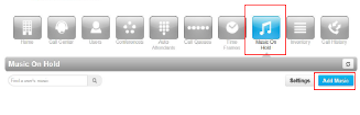
Here you can edit the Music On Hold for your entire company, or you can type a specific extension to place the Music On Hold just for that user.
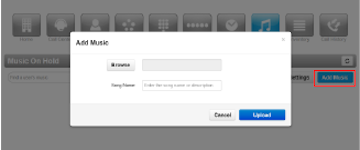
Once you have selected where you are going to upload your music, Click ‘Add Music’ A pop up will appear, and you can add your audio file. You must name your song before it can be uploaded.
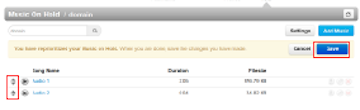
You can now click ‘Upload’ . If you have multiple files you want played, you can add more than 1. Whichever file you would like to play first, slide to the top and click save. The audio files below will play in same order as they are placed.
Was this article helpful?
0 out Of 5 Stars
| 5 Stars | 0% | |
| 4 Stars | 0% | |
| 3 Stars | 0% | |
| 2 Stars | 0% | |
| 1 Stars | 0% |
5
KB Search
Table of Contents